
Introduction
If your WordPress admin bar suddenly disappears, it can feel like something is seriously broken. That top toolbar is essential for quick edits, navigation, and managing your site.
The good news? In most cases, it’s not a major issue — just a small setting, plugin conflict, or missing code.
Let’s go through the exact fixes step by step.
Why Is the WordPress Admin Bar Not Showing?
Before jumping into fixes, it helps to understand the common causes:
- User profile settings disabled
- Plugin conflicts
- Theme issues
- Missing WordPress hooks
- Custom code hiding the toolbar
- Cache or browser problems
Now let’s fix it.
1. Check Your User Profile Settings
This is the most common (and easiest) fix.
What to do:
- Go to Users → Profile
- Find “Show Toolbar when viewing site”
- Make sure it is checked
- Click Update Profile
If this option is disabled, the admin bar simply won’t appear.
2. Disable All Plugins (Conflict Test)
Sometimes a plugin breaks the admin bar without warning.
Steps:
- Go to Plugins → Installed Plugins
- Deactivate all plugins
- Refresh your website
What next:
- If the bar appears → a plugin is the issue
- Reactivate plugins one by one to find the culprit
3. Switch to a Default Theme
Your theme might not be coded properly.
Try this:
- Go to Appearance → Themes
- Activate a default theme like:
- Twenty Twenty-One
- Twenty Twenty-Three
If the admin bar shows up, your theme is causing the problem.
4. Check for Missing WordPress Hooks
The admin bar relies on two important functions.
In header.php:
In footer.php:
If either of these is missing, the admin bar won’t load at all.
5. Look for Code That Disables the Admin Bar
Sometimes the admin bar is intentionally turned off via code.
Check your functions.php file:
👉 If you see this line, remove it.
6. Clear Cache (Browser + Website)
Caching can sometimes hide UI elements like the admin bar.
Do this:
- Clear browser cache
- Clear WordPress cache plugin
- Purge CDN cache (if using Cloudflare, etc.)
7. Check Your User Role
Not all users can see the admin bar.
Make sure your role is:
- Administrator
- Editor
- Author
Lower roles like Subscriber may not see it.
8. Check for JavaScript Errors
Broken JavaScript can stop the admin bar from loading.
How to check:
- Right-click → Inspect
- Open Console tab
- Look for red error messages
Fix or remove the problematic script.
Final
The WordPress admin bar not showing issue is usually caused by small things like settings, plugins, or theme problems — not something serious.
Start with the simple fixes first (profile + plugins), and you’ll likely solve it within minutes.
Final Thoughts
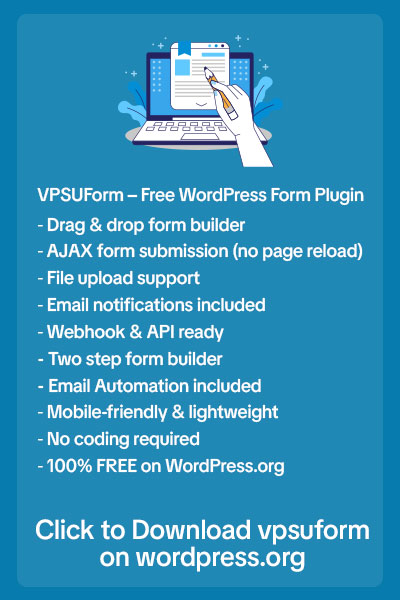
If you want a fast, reliable, and easy-to-use contact form plugin, VPSUForm is the clear choice. Build unlimited types of forms – contact, booking, feedback, surveys – with minimal effort.
👉 Download VPSUForm today and get started
👉 Learn more about VPSUForm’s powerful features here